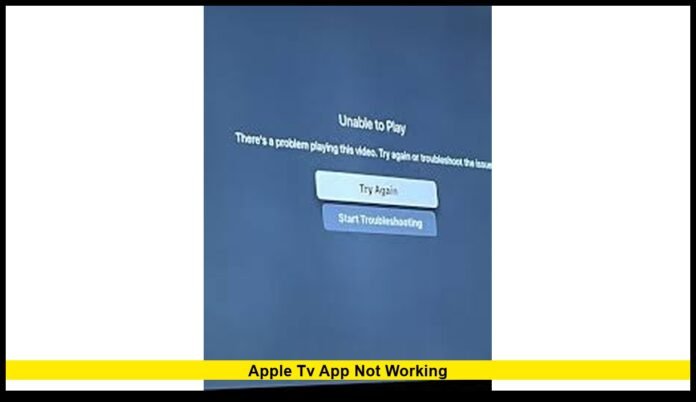

If you’re searching for answers because apple tv app not working on your device, you’re far from alone. Across the United States, users report problems such as the app failing to open, videos refusing to play, endless loading screens, black video with sound, or repeated sign-in prompts. While these issues can feel sudden and frustrating, they are usually linked to software conflicts, network interruptions, or device-specific settings rather than a permanent failure of the service.
The Apple TV app operates across a wide range of platforms, including Apple TV hardware, iPhones, iPads, Macs, smart TVs, streaming sticks, and gaming consoles. That wide compatibility also means problems can surface in different ways depending on how and where you watch. Understanding the most common causes helps narrow down the fastest fix.
Why the Apple TV app stops working unexpectedly
When the Apple TV app breaks down, the root cause usually falls into one of a few categories. Temporary system glitches are common, especially after long uptimes or background updates. Cached data can become corrupted, preventing the app from loading properly. Network-related issues, such as unstable Wi-Fi, DNS conflicts, or VPN interference, also play a major role.
In other cases, outdated software creates compatibility gaps. Even if the app itself looks current, an older operating system on your device or television can interfere with streaming, sign-ins, or video playback. Display and HDMI configuration issues can also make it seem like the app is broken when the problem is actually how video output is being handled.
Start with a full restart to clear hidden glitches
Restarting might sound basic, but it remains one of the most effective ways to fix Apple TV app issues. A proper restart clears temporary memory, resets background processes, and refreshes the device’s connection to your network.
Power off your device completely rather than putting it into sleep mode. Unplug it for several seconds before turning it back on. Restarting your modem and router at the same time helps eliminate network handshake problems that can prevent videos from loading.
Once everything powers back up, open the Apple TV app and try playing a short trailer first. This quick test helps confirm whether streaming is working before jumping into longer content.
Internet connection issues that disrupt playback
Many users find that the Apple TV app opens normally but refuses to play content. When that happens, the issue is often tied to the internet connection rather than the app itself.
An unstable Wi-Fi signal, network congestion, or router-level filtering can interrupt streaming even if other apps appear to work fine. VPNs and proxy services are frequent culprits, as they can interfere with regional licensing checks or streaming authentication.
Switching temporarily to a different network, such as a mobile hotspot, is a useful test. If playback works on another connection, the issue likely sits with your home network configuration.
Outdated software creates silent compatibility problems
Keeping both the Apple TV app and your device software updated is essential. Streaming platforms rely on frequent updates to maintain security, playback standards, and compatibility with content formats.
If your device is running older system software, the app may fail to launch, crash unexpectedly, or stop playback without a clear error message. After installing updates, always restart the device to ensure changes apply fully.
Smart TVs deserve special attention here. Even if the Apple TV app updates automatically, outdated TV firmware can still break streaming functionality.
Sign-in loops and missing content explained
One of the most confusing situations occurs when the Apple TV app opens, but purchased content, subscriptions, or watchlists don’t appear. Repeated prompts to sign in are another common symptom.
These problems usually point to account synchronization errors. Signing out of the app, restarting the device, and signing back in refreshes account credentials and permissions. This simple sequence often restores access to your full library and fixes playback authorization errors.
Black screen, frozen image, or audio-only playback
When the Apple TV app plays sound without video or displays a black screen, the issue is usually related to video output rather than streaming access.
HDMI cables, ports, and video settings can all cause these symptoms. Loose connections, damaged cables, or incompatible resolution and HDR settings may prevent your display from properly showing video.
Switching HDMI ports, reseating cables, or lowering video output settings temporarily can resolve the problem. Removing HDMI splitters or AV receivers during testing helps isolate whether external hardware is causing the issue.
Resetting the Apple TV app for a clean start
On many smart TVs and streaming devices, the Apple TV app includes a built-in reset option within its settings menu. Resetting clears stored data, cached files, and saved sign-in information.
This process is especially effective for stubborn problems such as endless loading screens, missing menus, or apps that crash immediately after opening. After resetting, you’ll need to sign in again, but the app often behaves like new afterward.
When reinstalling the app is the best solution
If resetting isn’t available or doesn’t fix the problem, reinstalling the Apple TV app provides a fresh installation. Deleting the app removes corrupted files that updates alone may not fix.
After uninstalling, restart your device before reinstalling the app. This step ensures no leftover data interferes with the new installation. Once reinstalled, sign in and test playback again.
Platform-specific considerations that matter
Apple TV hardware users may encounter issues tied to video output configuration. Adjusting resolution, frame rate matching, or HDR settings can stabilize playback.
Smart TV users should verify that their television’s system software is current, as firmware updates often include fixes for streaming apps.
On computers, especially Windows systems, graphics drivers and system updates can affect playback. Keeping these components updated reduces the chance of crashes or black screens.
When the issue goes beyond one device
If the Apple TV app fails across multiple devices and networks, the problem may be linked to account-level restrictions or broader service disruptions. In such cases, waiting for system stabilization or seeking direct assistance may be necessary.
However, most users find that one of the earlier steps resolves the issue quickly. For the majority experiencing apple tv app not working, the solution does not require advanced technical support.
Practical checklist to restore the Apple TV app
- Fully restart your device and router
- Check and stabilize your internet connection
- Update device software and the Apple TV app
- Sign out and sign back in
- Reset or reinstall the app
- Inspect HDMI cables and video settings
Following this order minimizes time spent troubleshooting and addresses the most common failure points first.
What to remember going forward
The Apple TV app is deeply integrated into both software and hardware environments. Small changes, such as updates, network shifts, or display adjustments, can trigger temporary issues. Staying current with updates, using stable internet connections, and restarting devices periodically helps prevent many problems before they start.
If apple tv app not working again in the future, revisiting these steps will usually restore streaming without delay.