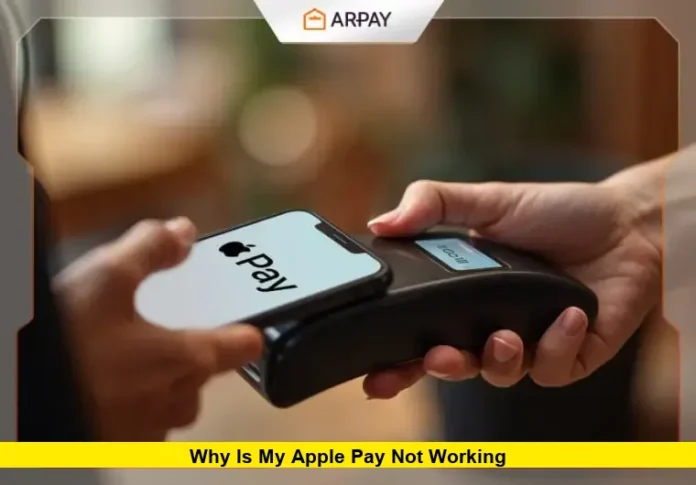

If you’re asking why is my Apple Pay not working, you’re not alone. Millions of people across the United States rely on Apple Pay every day for quick, secure contactless payments in stores, within apps, and on the web. Yet even this smart payment system can sometimes run into snags that stop you from completing a purchase. In this detailed guide, we’ll walk through the real reasons Apple Pay may fail, what’s causing the issue, and the exact steps you can take to restore seamless payments on your iPhone, Apple Watch, or other compatible Apple device.
Understanding Apple Pay and Where Problems Can Come From
Apple Pay works by linking your credit, debit, or prepaid cards to the Wallet app on your device, then using near-field communication (NFC) technology to communicate with payment terminals at checkout. At its core, Apple Pay relies on a mix of hardware (like your iPhone’s NFC chip), software (your device’s operating system and the Wallet app), and services (your bank or card issuer’s approvals). If any of these elements falter, payments can fail.
When Apple Pay stops working, it doesn’t always mean the system is down. In many cases, the issue is specific to your device, your card setup, or the checkout environment. Below we break down the most common confirmed causes and how to address them.
Outdated Software Can Interrupt Apple Pay
One of the most frequent reasons Apple Pay fails is software compatibility. Your iPhone, Apple Watch, iPad, or Mac needs to run a current version of its operating system. Apple regularly releases updates that improve the Wallet and Apple Pay experience and fix bugs that could disrupt payments. If your device is running outdated software, Apple Pay may not function correctly.
Always check Settings > General > Software Update to install any available updates. This simple step can resolve many issues, especially after a major iOS release.
Issues With Your Card or Bank Setup
Another common reason Apple Pay doesn’t work is a problem with the card itself. Your card might be expired, incorrectly set up, not yet verified by your bank, or simply not supported for Apple Pay transactions.
Before Apple Pay can work, your card must be activated and fully verified in the Wallet app. Some banks require additional verification steps before they allow the card to be used with Apple Pay. If the billing address on your device doesn’t match what the bank has on file, transactions may fail.
If your card isn’t appearing correctly or keeps declining, remove it from Apple Wallet and add it again. When you re-add it, make sure every detail matches what your bank expects.
Connectivity Problems and VPNs
Although Apple Pay often works offline for tap-to-pay at physical checkout terminals, it sometimes needs an internet connection to validate payment information, especially for online purchases. A weak Wi-Fi or cellular connection, or certain VPN settings, can block these checks.
Switch off any VPN temporarily and reconnect to a stable network before trying again. Turning Airplane Mode on and off can sometimes reset your device’s network connections and resolve communication issues.
NFC and Tap-to-Pay Hardware Issues
For in-store contactless payments, Apple Pay relies on NFC — the wireless technology that lets your iPhone or Apple Watch communicate with the card reader. If the NFC antenna inside your device is damaged or if your iPhone isn’t positioned correctly near the payment terminal, tap-to-pay won’t register.
When you tap, hold your device so the top part is close to the reader. On phones, the NFC antenna is near the camera cluster. If your iPhone has been dropped or exposed to water, hardware damage may be preventing contactless payments, and you might need support assistance.
Retailer Terminal Compatibility
Not every checkout terminal accepts Apple Pay. Some older payment systems or underconfigured contactless readers simply don’t recognize Apple Pay signals. If this happens at one store but not others, the issue is likely the terminal, not your iPhone.
Confirm that the retailer displays the contactless payment symbol or ask a staff member if Apple Pay is accepted. Trying your payment at another retailer can help you determine whether the problem is isolated or device-based.
Apple ID and Wallet Sync Issues
Sometimes Apple Pay problems are linked with your Apple ID or Wallet account sync. Signing out of your Apple ID and signing back in can refresh connections between your account and the Wallet app.
Another helpful step is to force close the Wallet app and relaunch it. Then, check that your Apple ID settings are correct and that you’re signed in on all devices where you use Apple Pay.
Face ID, Touch ID, or Authentication Failures
Apple Pay relies on a secure authentication method like Face ID, Touch ID, or your device passcode. If the biometric sensor isn’t working properly — perhaps because of dirt, moisture, or a hardware fault — Apple Pay may fail to authorize the payment.
If your biometric system isn’t functioning, you can try authenticating using your passcode or resetting the Face ID/Touch ID setup. Once that’s working, retry your Apple Pay transaction.
Region, Device Compatibility, and Supported Cards
Apple Pay isn’t available everywhere, and some cards may not be compatible depending on your region or the card issuer’s policies. Make sure you’re in a region where Apple Pay is supported and that your specific device model and iOS version support the service.
Also, two-factor authentication may be required for Apple Pay to function securely. Ensure that your Apple account has this enabled if prompted.
Step-by-Step Checklist to Get Apple Pay Working Again
Here’s a quick troubleshooting checklist that many users find effective:
- Restart your device – This often clears minor glitches.
- Update your software – Make sure iOS or watchOS is up to date.
- Re-add your payment card – Delete and then add the card again in Wallet.
- Check your bank’s authorization – Confirm the card is approved for mobile payments.
- Turn off VPNs and stabilize your network – For internet-dependent verifications.
- Verify retailer acceptance – Ensure the store supports Apple Pay.
- Confirm authentication methods work – Make sure Face ID, Touch ID, or passcode is set up correctly.
- Reset Apple ID sync – Sign out and back into your Apple ID.
- Test on another terminal or location – To isolate the problem source.
- Contact support if needed – If none of the above work, device hardware or account issues might be at play.
What About Major Retailers That Don’t Accept Apple Pay?
While most merchants in the U.S. support contactless payments, some notable exceptions still exist. For example, certain large retail chains haven’t implemented NFC checkout support, meaning Apple Pay won’t work at their registers even if your device is set up correctly. In such cases, alternative payment methods like proprietary store apps or traditional card swipes must be used.
Closing Thoughts
Apple Pay is designed to be seamless, but when it stops working it can be frustrating. The good news is that many problems are tied to settings, connectivity, or card setup — not a fundamental failure of the system. By walking through the troubleshooting steps above, you can pinpoint the cause and often fix it yourself.
If you’ve tried these steps and Apple Pay still isn’t working for you, share your experience in the comments or check back for more tips and updates.