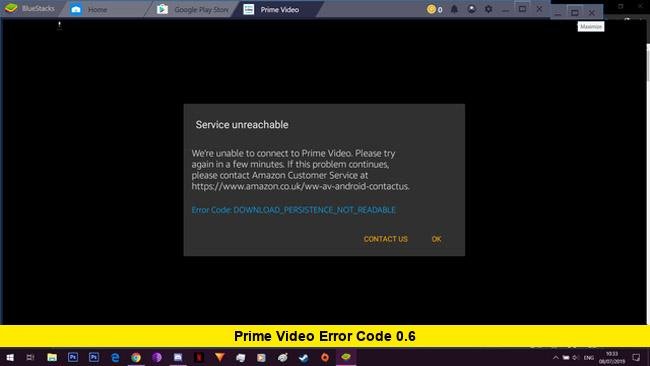

Streaming interruptions can be frustrating, especially when they appear without warning. One of the issues many U.S. viewers have recently encountered is prime video error code 0.6, a message that stops content from loading and prevents shows or movies from playing. This error usually appears when the app cannot complete a secure connection between your device and Amazon’s servers. While it may look serious, it is typically linked to correctable settings, network conditions, or software conflicts rather than a widespread service outage.
Understanding why this error appears and how to fix it can save time and help you get back to watching without repeated interruptions. Below is a detailed, up-to-date guide explaining what triggers the error, how it affects different devices, and what practical steps users are taking to resolve it.
What Error Code 0.6 Actually Indicates
Error code 0.6 appears during the authentication stage, when the Prime Video app verifies your device, account, and network before allowing playback. If this secure handshake fails, the app blocks the stream and displays the error.
The problem does not usually come from the video file itself. Instead, it signals that something in the connection path — such as system time, network routing, or cached app data — does not match what the service expects.
This is why two people in the same household may have different results on different devices. One TV might stream normally while another shows the error, even though both are connected to the same internet service.
Most Common Causes Confirmed by User Reports
1. System Date and Time Mismatch
Secure streaming platforms rely on accurate time settings to validate encrypted connections. If the internal clock on a smart TV, streaming stick, or console is out of sync, even slightly, authentication can fail.
Devices that are set to manual time instead of automatic network time are more likely to show this problem, especially after power outages or software updates.
2. Unstable or Restricted Network Connections
A brief drop in connectivity during the login or playback start process can interrupt verification. This can happen when:
- Wi-Fi signal strength is weak
- Routers are overloaded
- Network security settings block certain ports
- Public or shared networks limit streaming traffic
In these cases, the app cannot complete its security check and returns error 0.6.
3. Corrupted App Cache or Outdated Software
Temporary data stored by the app can become damaged over time. When this happens, the app may attempt to load outdated credentials or configuration files, leading to repeated connection failures.
Outdated operating systems or older versions of the Prime Video app can also lose compatibility with current security protocols.
4. VPN, Proxy, or Custom DNS Interference
Services that reroute traffic or mask location can disrupt how streaming platforms validate devices. Even when the VPN is fast, the altered routing path may cause the app to fail its verification process and display error code 0.6.
5. Account or Device Authorization Conflicts
Prime Video limits how many devices can stream at the same time. If the maximum number is reached, or if an old device remains registered but inactive, new playback attempts may be blocked.
Step-by-Step Fixes for Popular Devices
Smart TVs and Streaming Sticks
These include Samsung, LG, Android TV, Roku, and Fire TV models.
Check and reset system time
- Go to settings.
- Set date and time to automatic or network-provided.
Restart the device
- Power it off.
- Unplug it for at least 60 seconds.
- Plug it back in and restart.
Clear app data or reinstall
- Remove the Prime Video app.
- Restart the device.
- Reinstall the app and sign in again.
Update system software
- Install the latest firmware and app version.
Game Consoles (PlayStation and Xbox)
Refresh the network connection
- Run a connection test.
- Restart the console and router.
Update the system
- Install the latest console software updates.
Reinstall Prime Video
- Delete the app.
- Restart the console.
- Download the app again and log in.
Mobile Phones and Tablets
Enable automatic date and time
- Use network-provided time settings.
Update the app
- Install the newest version from the app store.
Disable VPN or custom DNS
- Turn off routing tools and retry streaming.
Restart the device
- This clears temporary memory conflicts.
Computers and Web Browsers
Sync system clock
- Set time and time zone to update automatically.
Clear browser cache and cookies
- Restart the browser after clearing.
Try another browser
- Different browsers handle secure connections differently.
Disable extensions
- Especially ad-blockers, proxy tools, or privacy filters.
Why the Error Can Appear Suddenly
Many users report that the error starts after:
- Internet service changes
- Router firmware updates
- Device software updates
- Power interruptions
- Switching time zones or traveling with devices
These events can reset system clocks, alter network paths, or corrupt temporary files, triggering authentication failures the next time the app is opened.
Preventing Prime Video Error Code 0.6 in the Future
To reduce the chance of encountering this issue again:
- Keep all devices on automatic date and time.
- Update apps and operating systems regularly.
- Maintain a strong, stable internet connection.
- Restart streaming devices periodically.
- Avoid VPNs or traffic-redirecting tools while watching.
- Sign out of unused devices in your account settings.
When to Contact Support
If the error continues after:
- Resetting date and time
- Reinstalling the app
- Updating device software
- Testing with a stable network
then the issue may involve account authorization or a deeper configuration problem. In such cases, providing your device model and the exact error code to customer support can help them identify the cause faster.
Final Outlook
While it can be disruptive, prime video error code 0.6 is usually not a sign of a platform-wide outage. It is most often tied to local device settings, network stability, or security verification steps that can be corrected with a few adjustments. By keeping your system clock accurate, your software up to date, and your network stable, you can minimize the chances of seeing this error and enjoy uninterrupted streaming across your devices.
Have you run into this issue recently? Share what worked for you and stay tuned for more practical streaming fixes and updates.