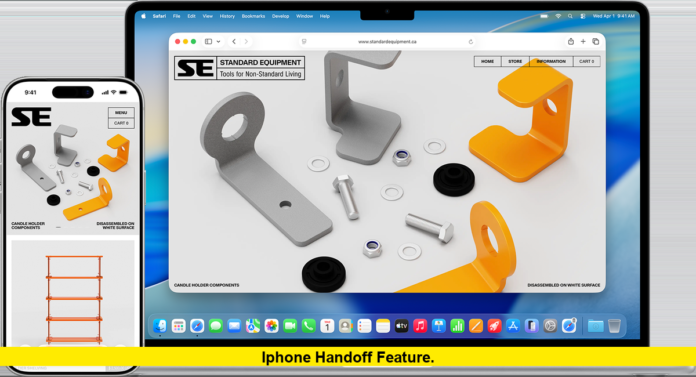

The iPhone Handoff feature lets users start a task on one Apple device and continue it on another without starting over. Apple continues to support Handoff as part of its broader Continuity system in the current generation of its operating systems.
For iPhone users who regularly move between an iPhone, iPad, Mac, or Apple Watch, Handoff can make everyday tasks considerably more seamless. A webpage, email, document, map, or other supported activity can move from one nearby Apple device to another.
Apple’s current support documentation continues to list Handoff as an active Continuity feature. The company has also updated its support instructions for current software versions, confirming that the feature remains available rather than being replaced by a newer system.
What Is the iPhone Handoff Feature?
Handoff is an Apple Continuity feature designed to let you move an active task between compatible Apple devices.
For example, you might begin reading a webpage in Safari on your iPhone while traveling. When you reach your Mac, you can use Handoff to open that same webpage on the computer and continue where you left off.
The same basic concept works for supported apps such as Mail, Maps, FaceTime, Notes, Pages, Numbers, Keynote, Reminders, Calendar, Contacts, and several other Apple apps. Some third-party apps also support Handoff.
Handoff is different from simply syncing information through iCloud. Instead of only making data available on another device, Handoff is designed to let you continue an active task.
How Handoff Works on iPhone
The feature uses Apple’s Continuity technology to recognize compatible tasks between nearby devices.
For Handoff to work, Apple says the participating devices need Wi-Fi and Bluetooth turned on. They also need to use the same Apple Account and meet the applicable system requirements.
The devices also need to be close enough for the Continuity connection to function properly. Apple specifies a maximum distance of about 30 feet, or 10 meters, for Handoff-related Continuity functionality.
Once everything is configured, you simply open a supported app and begin a task. When another compatible Apple device is nearby, that device can offer an option to continue the activity.
This means Handoff does not require users to manually send the task to themselves through email, messaging, AirDrop, or another sharing service.
How to Turn On Handoff on an iPhone
Apple’s current iPhone instructions place the Handoff setting under Settings > General > AirPlay & Continuity. On some software versions or devices, the menu can appear as AirPlay & Handoff.
To enable it:
- Open Settings on your iPhone.
- Tap General.
- Select AirPlay & Continuity or AirPlay & Handoff.
- Turn on Handoff.
Handoff also needs to be enabled on the other Apple device you want to use.
For a Mac, Apple currently directs users to Apple menu > System Settings > General > AirDrop & Continuity, where they can enable the option allowing Handoff between the Mac and their iCloud devices.
The exact menu wording can vary with the operating system version installed on a device.
What Can You Do With Handoff?
Handoff is most useful when an activity begins on one device but makes more sense on another.
Apple specifically identifies several supported apps and activities. Examples include:
- Safari: Continue viewing a webpage on another Apple device.
- Mail: Start composing an email on one device and continue on another.
- Maps: Continue working with a map or navigation-related activity.
- Notes: Continue working on supported notes.
- Pages: Continue editing a document.
- Numbers: Continue working on a spreadsheet.
- Keynote: Continue editing a presentation.
- Reminders: Continue working with supported reminders.
- Calendar: Continue with calendar-related tasks.
- FaceTime: Continue supported activities between devices.
- Contacts: Continue working with contact information.
Apple also confirms that some third-party apps support Handoff, although availability depends on the individual app.
The important point is that Handoff does not automatically make every app transferable. The application itself needs to support Apple’s Handoff functionality.
Where Does the Handoff Option Appear on iPhone?
On an iPhone, the Handoff option appears at the bottom of the App Switcher when a compatible task is available.
To access it, swipe up from the bottom of the iPhone display and pause to open the App Switcher. If another Apple device has a task that can be handed off, the relevant app banner can appear at the bottom of the screen.
Tapping that banner lets you continue the task on the iPhone.
The experience works in the opposite direction as well. If you start a compatible task on an iPhone and want to continue it on a Mac, the Handoff icon appears in the Mac’s Dock. Apple says Mac users can also access the Handoff app through the Command-Tab app switcher.
Using Handoff Between an iPhone and Mac
The iPhone-to-Mac experience is one of Handoff’s most useful applications.
Imagine writing an email on your iPhone. Instead of saving a draft and manually opening it on your Mac, Handoff can allow you to pick up the task directly on the computer.
Safari provides another straightforward example. A webpage being viewed on an iPhone can be handed off to a nearby Mac. Apple also supports viewing webpages from other Apple devices through iCloud Tabs, although that is separate from the Handoff mechanism itself.
For users who switch frequently between mobile and desktop devices, the distinction matters. Handoff is designed around continuing an active task, while other Continuity features handle different types of sharing and synchronization.
Using Handoff Between an iPhone and iPad
Handoff also works between iPhone and iPad.
For example, a user can start an email, document, or other supported activity on an iPhone and then continue it on an iPad.
Apple’s current documentation confirms that Handoff can operate between iPhone, iPad, and Mac. It also supports Handoff between Apple Watch and iPhone, with additional device combinations depending on the feature and supported software.
The iPad displays Handoff through the Dock when a compatible task is available. Users can tap the Handoff icon to continue the activity.
Handoff and Apple Watch
Handoff is not limited to Apple’s larger-screen devices.
Apple says Apple Watch can participate in Handoff with iPhone, iPad, and Mac. On the Apple Watch side, users can manage the feature through the Apple Watch app on their iPhone by going to My Watch > General and enabling Handoff.
This makes Handoff part of a larger ecosystem rather than an iPhone-only feature.
What You Need for Handoff to Work
If Handoff is not appearing, several requirements should be checked first.
Apple identifies these important conditions:
| Requirement | What to check |
|---|---|
| Wi-Fi | Wi-Fi should be enabled on both devices |
| Bluetooth | Bluetooth should be enabled |
| Apple Account | Devices should use the same Apple Account |
| Handoff | Handoff should be enabled |
| Distance | Devices should be nearby |
| App support | The app must support Handoff |
| Software | Devices must meet the applicable system requirements |
Apple also warns that VPN configurations can interfere with some Continuity features if they prevent local networking.
Why Handoff May Not Work on an iPhone
Handoff can appear to stop working even when the feature itself is still supported.
The first things to check are Wi-Fi, Bluetooth, Apple Account settings, and whether Handoff is enabled on both devices.
The next consideration is app compatibility. Not every iPhone app supports Handoff. Apple specifically recommends checking whether the app is compatible when troubleshooting the feature.
Distance can also matter. Apple says Continuity-related functionality such as Handoff requires compatible devices to be near one another.
Restarting the devices can also help when Continuity features do not respond as expected. Apple lists restarting devices among its troubleshooting steps for related Continuity functionality.
Handoff vs. Universal Clipboard
Handoff and Universal Clipboard are related Continuity features, but they perform different jobs.
Handoff lets you continue an active task on another Apple device.
Universal Clipboard lets you copy text, images, photos, and videos on one Apple device and paste them on another. Apple requires Wi-Fi, Bluetooth, Handoff, and the same Apple Account for Universal Clipboard.
For example, copying a paragraph on an iPhone and pasting it into a document on a Mac is a Universal Clipboard use case.
Opening the same active document or webpage on another device to continue working is a Handoff use case.
The two features therefore complement each other rather than replacing one another.
Is Handoff Still Available in 2026?
Yes. Apple’s current support documentation continues to list Handoff as a supported Continuity feature for iPhone and other Apple devices.
Apple’s current iPhone guide describes Handoff as a way to start a task on one device and complete it on another. The company’s June 2026 support documentation also provides current instructions for using Handoff across Apple devices.
Apple’s current iOS 26 update documentation also shows that the iOS 26 software cycle has continued through multiple updates, including iOS 26.6 and iOS 26.6.1. The latest listed iOS 26.6.1 update provides security fixes.
There is no verified indication in Apple’s current support material that Handoff has been discontinued.
What Makes Handoff Useful for iPhone Users?
The biggest advantage is continuity.
People often begin tasks on their phones because an iPhone is immediately available. Later, they may want to move to a Mac or iPad because the larger display or physical keyboard is more convenient.
Handoff reduces the number of steps required to make that transition.
Instead of remembering the webpage, searching for the document again, or sending information to another device, users can use the Handoff option when the task is supported.
It is particularly useful for people who already use multiple Apple devices because the feature is built into Apple’s Continuity ecosystem rather than requiring a separate Handoff app.
The Latest Status of the iPhone Handoff Feature
As of September 3, 2026, Handoff remains an active Apple Continuity feature. Apple’s current documentation continues to support task transfer between iPhone, iPad, Mac, and Apple Watch, subject to device, software, app, account, connectivity, and proximity requirements.
For iPhone owners, the feature remains straightforward to configure: enable Handoff under the appropriate Continuity settings, use the same Apple Account across compatible devices, keep Wi-Fi and Bluetooth enabled, and use a supported app.
The current status is therefore clear: Handoff remains part of Apple’s cross-device experience in 2026, giving users a practical way to move an ongoing task from an iPhone to another Apple device without manually recreating the activity.
Have you used Handoff to move a task from your iPhone to a Mac or iPad? Share your experience and stay tuned for the latest Apple feature updates.