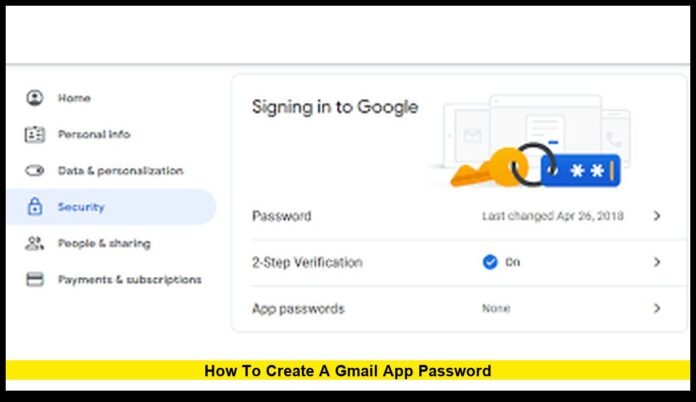

How to Create a Gmail App Password is an essential topic for U.S. users in 2026 as Google continues strengthening account security while still supporting older apps and devices that cannot use modern sign-in methods. A Gmail App Password is a unique 16-character code that allows specific applications to connect to your Gmail account without using your main Google password. This method works only when two-step verification is enabled and is designed to keep your account protected while maintaining compatibility with legacy software and specialized devices.
Google now relies heavily on passkeys, security prompts, and advanced authentication, but many business tools, desktop email programs, and smart devices still depend on traditional username-and-password login. In these cases, an app password becomes the only secure bridge between your Gmail account and the app that needs access.
What a Gmail App Password Really Does
A Gmail App Password is not your normal Google password. It is a system-generated, single-purpose credential that grants access only to the app or device you assign it to. It does not give full control of your Google Account, and it cannot be used to change security settings or access sensitive areas like payment information.
Important characteristics include:
- It contains 16 characters.
- It works only after two-step verification is active.
- It is created for one app or device at a time.
- It can be revoked instantly.
- It is shown only once during creation.
This approach reduces the risk of exposing your primary password while allowing older systems to function.
Why Gmail App Passwords Are Still Needed in 2026
Although Google promotes passkeys and built-in authentication prompts, many environments still rely on software that cannot support them.
Common situations include:
- Desktop email clients that do not support modern OAuth login
- Business automation tools that send or receive mail through SMTP
- Customer relationship management platforms
- Accounting and invoicing software
- Office printers and scanners that send documents through Gmail
- Backup email tools and archiving systems
- Older smartphones and tablets
In all these cases, the app password acts as a secure substitute for your main login.
Security Requirement: Two-Step Verification
Before you can create an app password, two-step verification must be fully enabled on your Google Account. This is a mandatory condition.
To activate it:
- Sign in to your Google Account.
- Open the Security section.
- Locate the sign-in settings.
- Enable two-step verification using your phone, authenticator app, or hardware key.
- Complete the verification process.
Once this protection is active, your account becomes eligible for app password creation.
How to Create a Gmail App Password
Follow these steps carefully to generate your secure access code.
Step 1: Sign In to Your Account
Log in using your Gmail address and your normal password.
Step 2: Open Security Settings
Go to your account’s Security panel where sign-in and verification options are managed.
Step 3: Find App Passwords
Under the sign-in section, open the App Passwords area. You may be prompted to confirm your identity again.
Step 4: Select App and Device
Choose the type of app you are setting up, such as Mail, or select “Other” and assign a custom name. This helps you recognize it later.
Examples of useful labels:
- Desktop Outlook
- Accounting Software Mail
- Office Scanner
- Marketing Automation Tool
- Backup Email Client
Step 5: Generate the Password
Click the generate button. A 16-character code will appear on the screen.
Key rules:
- Copy it immediately.
- Store it securely.
- It will not be displayed again.
Step 6: Enter the Code in Your App
Paste the full code into the password field of the app or device. Do not use your regular Google password.
Once saved, the app will authenticate successfully.
Managing Your App Passwords
Google allows full control over all generated app passwords from your account security page.
You can:
- View all active app names
- Revoke access for any device instantly
- Remove passwords you no longer use
- Create new ones for additional apps
For safety, it is recommended to:
- Delete passwords tied to old or unused devices
- Create separate passwords for each application
- Review the list every few months
If you change your main Google password, all existing app passwords are automatically disabled.
Best Practices for Maximum Security
To keep your Gmail account safe while using app passwords:
- Use them only when an app cannot support modern sign-in.
- Never share them through email or messaging apps.
- Store them in an encrypted password manager.
- Avoid reusing the same app password on multiple devices.
- Revoke any password immediately if a device is lost or replaced.
Because app passwords bypass interactive verification, careful handling is essential.
Common Issues and How to Solve Them
App Password Option Not Visible
This usually means two-step verification is not fully active or your account uses advanced protection that restricts legacy access.
Authentication Fails
Check for:
- Typing errors
- Missing characters
- Extra spaces
- Incorrect app selection
Multiple Devices Using One Password
For better control and tracking, each device should have its own app password.
Situations Where App Passwords Should Not Be Used
If an app supports:
- Passkeys
- Google Prompt authentication
- Built-in Google sign-in
Then you should use those methods instead. App passwords are meant only for systems that cannot handle modern security standards.
Business and Professional Use in the United States
Many U.S. companies still rely on legacy infrastructure for email automation, reporting, and document delivery. Medical offices, law firms, financial institutions, and educational organizations often use specialized tools that require SMTP or IMAP access. App passwords allow these systems to function securely without weakening overall account protection.
Remote workers and small business owners also depend on this method when integrating Gmail with desktop software, billing platforms, and customer support systems.
Understanding Revocation and Recovery
If an app password is compromised:
- Open your Google Account security panel.
- Delete the affected password.
- Generate a new one if the app still needs access.
- Update the app with the new code.
The old password becomes unusable immediately, protecting your account from further access.
Long-Term Account Safety Strategy
Combining the following creates a strong security foundation:
- Two-step verification
- Passkeys where supported
- App passwords only for legacy tools
- Regular review of connected apps
- Strong primary password
- Secure recovery options
This layered approach ensures both convenience and protection.
Why This Knowledge Matters Today
As digital security standards evolve, many users assume older systems are no longer supported. However, Gmail App Passwords remain a critical compatibility tool for professionals, businesses, and individuals who depend on specialized or aging software.
Knowing exactly how to create a Gmail App Password allows you to:
- Maintain uninterrupted email access
- Avoid security downgrades
- Protect your main credentials
- Stay compliant with Google’s current authentication policies
Staying informed about how to create a Gmail App Password helps you keep your email connected, secure, and ready for the demands of modern work and communication. Share your experience or follow future updates to stay protected.