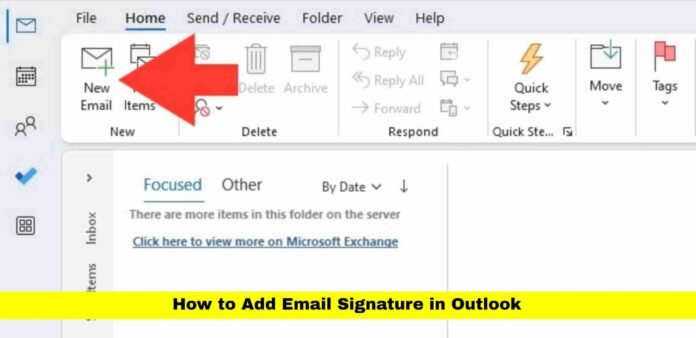

This article explains how to create, customize, and manage email signatures in Outlook across desktop, web, and mobile versions. It highlights best practices to keep signatures professional, consistent, and easy to update.
Setting up a professional email signature is one of the simplest ways to make every message look polished and trustworthy. If you are searching for how to add email signature in Outlook, this in-depth guide explains the full process clearly, covering desktop, web, and mobile versions used by millions of people in the United States every day.
Email signatures are not just a formality. They help recipients quickly identify who you are, what you do, and how to contact you. Outlook offers flexible tools to create, edit, and manage signatures so they appear exactly when and where you want them.
Why Email Signatures Matter in Daily Communication
Email remains a primary communication tool for work, education, and personal use. Every message you send represents you, and a well-structured signature adds credibility without extra effort.
A proper signature can include your name, role, phone number, and business details. When set up correctly, it saves time by automatically appearing at the end of your messages. Outlook allows users to control formatting, placement, and usage depending on the type of message being sent.
Consistency is key. A clean, readable signature ensures recipients never have to search for your contact details.
Understanding Where Signatures Are Managed in Outlook
Outlook handles signatures through built-in settings rather than during message writing alone. Depending on the version you use, signature controls may appear in slightly different places.
Desktop versions store signature settings within account preferences. The web version places them under mail composition settings. Mobile apps provide a simpler text-based option. Once you know where to look, managing signatures becomes straightforward.
Creating a Signature in Outlook Desktop (Windows)
For users working on Windows, Outlook’s desktop application provides the most customization options.
Open Outlook and navigate to the settings area. Look for the section related to mail or accounts. Inside, you will find the option to manage signatures. From there, you can create a new signature by naming it and entering your desired content in the editor.
The editor allows font changes, text alignment, color adjustments, and hyperlink insertion. You can add phone numbers, website links, or disclaimers as needed. After creating your signature, assign it as the default for new emails, replies, or forwarded messages.
Once saved, Outlook automatically applies the selected signature based on your preferences.
Using Multiple Signatures for Different Situations
Outlook allows users to store several signatures at once. This is useful if you communicate with different audiences.
For example, you may want a full professional signature for external emails and a shorter version for internal conversations. You can switch between signatures while composing an email using the signature menu.
Naming each signature clearly helps avoid confusion when selecting one manually.
Setting Up a Signature in Outlook on the Web
Many users rely on Outlook through a web browser, especially when working remotely. The web version includes full signature functionality.
After signing in, open settings and find the mail composition section. There, you can create a signature using a formatting editor similar to the desktop version. You can adjust fonts, add links, and control spacing.
Outlook on the web also lets you decide whether the signature appears automatically on new emails, replies, or both. Saving changes ensures the signature applies consistently across your browser sessions.
Managing Signature Appearance in Replies and Forwards
One important setting often overlooked is how signatures behave in replies and forwarded emails.
Some users prefer to include a full signature only in new messages, while others want it in every email. Outlook gives you full control. Within signature settings, choose which signature appears in each scenario.
This flexibility helps keep reply chains clean while maintaining professionalism.
Adding Images and Logos to Outlook Signatures
Outlook supports images in signatures, including logos or banners. This feature is commonly used in business communication.
When editing a signature, use the image option to upload a logo from your device. After inserting it, resize the image so it does not overwhelm the text. A balanced layout ensures readability across devices.
Keep in mind that some email clients display images differently, so testing your signature by sending an email to yourself is recommended.
Mobile Outlook Signatures Explained
The Outlook mobile app offers a simplified signature experience. While it does not support advanced formatting or images, it still allows users to add text-based signatures.
Open the Outlook app, go to settings, select your email account, and find the signature option. Enter the text you want to appear at the end of your mobile emails. This signature will apply only to messages sent from the app.
Many users keep mobile signatures short to match the limited screen space.
Keeping Signatures Consistent Across Devices
Outlook does not automatically sync signatures across all platforms. A signature created on desktop will not instantly appear on mobile or web versions.
To maintain consistency, manually recreate or copy your signature across platforms. Keeping the same wording and layout helps ensure recipients see uniform information regardless of the device you use.
Regularly reviewing your signatures prevents outdated phone numbers or titles from appearing.
Troubleshooting Common Signature Issues
Sometimes users report that their signature does not appear when composing emails. This usually happens when default settings are not assigned correctly.
Check that your signature is selected for new messages and replies. If the issue persists, restart Outlook or re-save the signature. In web versions, ensure changes are saved before closing settings.
In corporate environments, administrative restrictions may limit customization options.
Best Practices for a Professional Outlook Signature
A strong signature is clear and uncluttered. Limit content to essential details. Avoid excessive colors, large images, or lengthy quotes.
Use standard fonts for readability. Align text properly and ensure links are clickable. If you update your role or contact details, revise your signature immediately.
Testing your signature by sending emails to different providers helps identify formatting issues early.
Why Outlook Signatures Improve Efficiency
Once set up, a signature eliminates the need to type contact details repeatedly. It also reduces errors caused by manual entry.
Outlook’s ability to store multiple signatures gives users control over how they present themselves in different situations. Over time, this small setup step saves effort and enhances communication quality.
Read Also :- Gmail Passwords Exposed Data Leak.
Recap of the Signature Setup Process
To summarize, creating a signature involves accessing Outlook settings, designing your signature content, assigning default behavior, and testing the result.
Whether you use desktop, web, or mobile Outlook, the process is manageable and customizable. Understanding where options are located makes adjustments quick and stress-free.
When to Review and Update Your Signature
Signatures should evolve as your role changes. New job titles, phone numbers, or branding updates require immediate edits.
Regular reviews ensure your emails always reflect accurate and current information. Outlook makes updating signatures fast, so there is no reason to leave outdated details in place.
Final Thoughts on Outlook Signatures
Knowing how to add email signature in Outlook gives you control over how every message represents you. A well-designed signature adds professionalism, saves time, and ensures clear communication across all platforms.
Have you customized your Outlook signature in a unique way, or do you keep it simple? Share your thoughts and stay informed with more practical email tips.