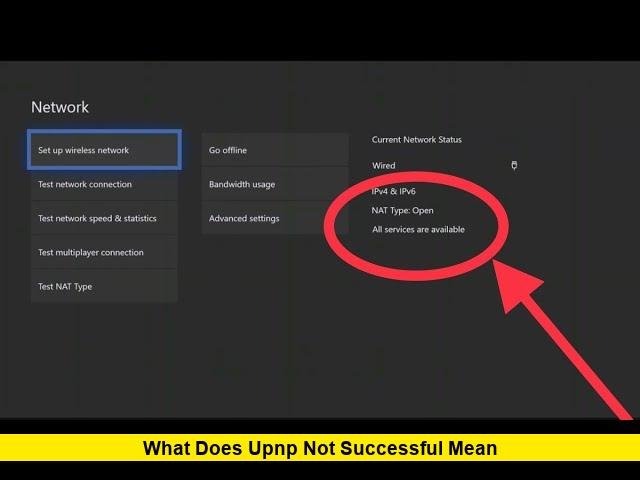

If you have ever opened your Xbox network settings and noticed an error message about port forwarding, you have likely asked yourself what does UPnP not successful mean and whether it is something you need to worry about. This message is one of the most common networking alerts Xbox users encounter, and while it looks technical, the cause and the fix are usually simple once you understand what UPnP actually does. This article breaks down the meaning behind this message, why it happens, and the most effective ways to resolve it so you can get back to smooth online gaming.
Understanding UPnP and Why It Matters
UPnP stands for Universal Plug and Play, a router feature that allows devices on your home network, including your Xbox console, to automatically open the ports needed for online multiplayer, voice chat, and party chat. Instead of requiring you to manually configure port forwarding through your router’s settings, UPnP lets the Xbox communicate directly with the router to request the correct ports on its own. This automatic process is what makes online gaming, matchmaking, and voice communication work smoothly without extra setup.
When everything is functioning correctly, this process happens quietly in the background, and most players never think about it. It only becomes noticeable when something breaks down, and that is exactly when the “UPnP Not Successful” message appears.
So, What Does UPnP Not Successful Mean?
In simple terms, this error means your Xbox tried to communicate with your router to automatically open the ports it needs, but the request failed. The console and router essentially failed to complete that handshake. As a result, your NAT type may shift to Moderate or Strict instead of Open, which can lead to a range of connectivity problems including difficulty joining multiplayer sessions, being unable to hear or be heard in party chat, or experiencing an overall unstable connection during online play.
It is important to understand that this message does not necessarily mean something is broken beyond repair. In most cases, it reflects a temporary or easily correctable issue between your console’s network settings and your router’s configuration rather than a permanent hardware failure.
Common Causes Behind the Error
There are several reasons this message can appear, and identifying the likely cause can help you choose the right fix rather than troubleshooting randomly. Some of the most frequent causes include:
- UPnP being disabled in the router’s settings, either by default or due to a manual change
- Outdated router firmware that has not been updated by the manufacturer
- Network congestion caused by too many devices competing for bandwidth
- A firewall on the router blocking the specific ports UPnP is trying to open
- Use of a VPN on the network, which can interfere with the automatic port negotiation process
- Double NAT situations, which occur when two routers on the same network are both trying to manage network address translation
- ISP-side restrictions that limit or block certain ports needed for Xbox Live services
Because UPnP relies on cooperation between your console, your router, and sometimes your internet service provider, the source of the problem can vary from one household to the next, even though the symptoms look identical.
How to Fix UPnP Not Successful on Xbox
The good news is that most instances of this error can be resolved with a handful of straightforward steps, starting with the simplest options before moving toward more advanced network changes.
Restart your equipment first. Turning off your Xbox completely, rather than putting it into sleep mode, along with restarting your modem and router, can clear temporary glitches that interrupted the original UPnP handshake. This is often enough to resolve the issue without any further changes.
Check and toggle UPnP in your router settings. Log in to your router’s admin page, usually accessible through a web browser using the router’s IP address, and confirm that UPnP is turned on. If it is already enabled, try turning it off, saving the change, restarting your console and router, and then turning it back on again. This refresh can sometimes resolve a stuck configuration.
Update your router’s firmware. Outdated firmware is a common and often overlooked cause of UPnP failures. Most router manufacturers provide firmware updates through the admin dashboard or a companion app, and applying the latest version can resolve compatibility issues with newer console software.
Update your Xbox console software. Just as outdated router firmware can cause problems, an outdated Xbox system can also fail to complete the UPnP process correctly. Checking for and installing the latest console update through system settings ensures both ends of the connection are running compatible software.
Turn off any active VPN. If you are using a VPN on your network or console, temporarily disabling it can help determine whether it is interfering with UPnP’s ability to open ports automatically. VPNs often reroute traffic in ways that conflict with automatic port forwarding.
Consider manual port forwarding as an alternative. If UPnP continues to fail even after trying the steps above, manually forwarding the specific ports Xbox Live requires through your router settings can achieve the same result as UPnP, though it requires a bit more manual configuration.
Contact your ISP if the issue persists. In some cases, the problem lies outside your home network entirely. Internet service providers sometimes restrict certain ports or introduce double NAT configurations that prevent UPnP from working properly, and only your ISP can adjust these settings on their end.
Why This Topic Continues to Generate Interest
Networking errors like this one remain a frequent search topic because they directly affect the multiplayer experience, which is central to how most people use their Xbox consoles today. Voice chat problems, matchmaking failures, and inconsistent connections are frustrating precisely because they are intermittent and can be difficult to diagnose without understanding the underlying cause. Community forums, official Xbox support pages, and troubleshooting guides continue to see steady engagement around this error, reflecting how often router and console configurations change due to firmware updates, new equipment, or shifts in home network setups.
Current Guidance and What to Expect
There is no indication of any recent, large-scale change to how UPnP functions on Xbox consoles, and official guidance from Xbox support continues to recommend the same core troubleshooting sequence: verifying router UPnP settings, restarting equipment, and updating both router firmware and console software. If you are seeing this error today, it is most likely tied to one of the common causes outlined above rather than a broader service issue, and working through the fixes in order will resolve the problem for the vast majority of users.
Final Thoughts
Understanding what UPnP not successful means takes away much of the frustration that comes with seeing this message pop up during a gaming session. At its core, it simply indicates a failed automatic port request between your Xbox and your router, and in most cases, the fix involves nothing more than a restart, a settings toggle, or a firmware update. By working through the causes and solutions outlined here, most players can restore an Open NAT type and get back to a stable, uninterrupted online experience.
Have you run into the UPnP not successful error recently? Share what worked for you in the comments, and check back for more Xbox troubleshooting guides.