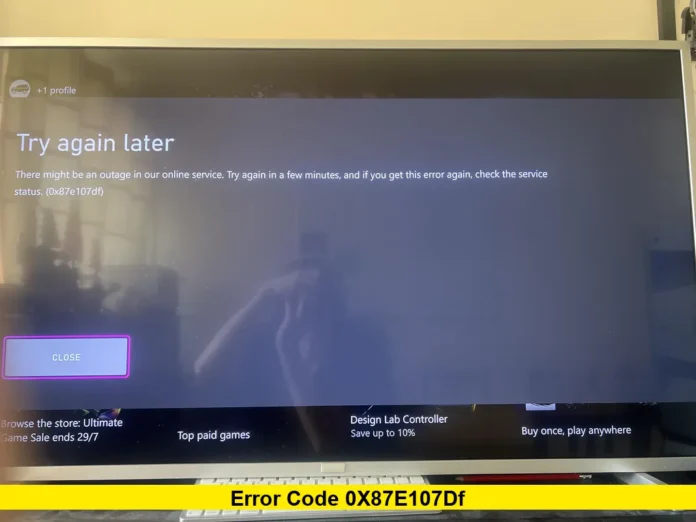

Few things are more frustrating for a gamer than sitting down to play a favorite title only to be met with a cryptic message on screen, and the error code 0x87e107df is one of the most commonly reported issues among Xbox users trying to launch digitally purchased games. This error typically appears when the console is unable to validate a game’s license through Xbox Live, preventing the title from launching even though it was purchased and installed correctly. Understanding why this error occurs and how to resolve it can save players a significant amount of frustration, especially since the fixes are usually straightforward once the underlying cause is identified.
What Triggers Error Code 0x87E107DF
The 0x87e107df error is directly tied to Xbox’s licensing validation system. When a player attempts to launch a digitally purchased game, the console reaches out to Xbox Live servers to confirm that the license associated with that game is valid and tied to the correct account. If that verification process fails or is interrupted for any reason, the console returns this error instead of allowing the game to launch. The on-screen message typically reads along the lines of “Try again later, there might be an outage,” which points directly to the root cause: a temporary breakdown in communication between the console and Microsoft’s licensing and content usage servers.
There are several scenarios that commonly lead to this error appearing:
- Temporary server-side outages affecting Xbox Live’s Purchase and Content Usage service
- Corrupted temporary files or cached data on the console that interfere with license verification
- Network connectivity issues that prevent the console from reaching Xbox’s authentication servers
- Account sign-in problems that disrupt the validation handshake between the console and the server
Because the error is fundamentally about licensing verification rather than a problem with the game file itself, reinstalling the game is rarely necessary and is not typically the first troubleshooting step recommended.
Checking Xbox Server Status First
Before attempting any fixes, it is worth confirming whether the issue is isolated to your console or part of a broader service disruption. Since the 0x87e107df error is closely linked to Xbox Live’s licensing servers, a known outage affecting the Purchase and Content Usage service can trigger this error for a large number of players simultaneously. Microsoft’s official Xbox status page reflects real-time service health and is the most reliable place to check whether an outage is currently affecting licensing or account services.
Xbox Network has experienced several broader service disruptions in 2026 that illustrate how closely tied this error can be to server-side problems. A significant outage on July 23, 2026, stemming from issues within Microsoft’s Azure cloud infrastructure, disrupted sign-ins, server connections, and game launches for a large number of players before being resolved the same day. An earlier disruption in February 2026 affected login and game save syncing for users globally after a spike in complaints. In both cases, players encountering license or authentication-related errors during those windows were generally advised to wait for Microsoft to resolve the underlying infrastructure issue rather than attempt console-side fixes, since the problem was not something a restart alone could correct.
If the status page shows all services as operational, the issue is more likely isolated to your specific console, account, or network connection, which means the troubleshooting steps below are likely to help.
Step-by-Step Fixes for the 0x87E107DF Error
When server status appears normal and the error persists, there are several methods players commonly use to resolve the issue, starting with the simplest and moving toward more involved solutions.
Restarting the console is typically the first recommended step. A standard restart can clear minor communication issues between the console and Xbox Live servers without affecting any saved data or installed games. This can be done by holding the Xbox button on the controller until the Power Center appears, selecting Restart Console, and confirming the action.
Power cycling the console goes a step further than a standard restart and is often effective when a simple restart doesn’t resolve the error. This process clears temporary system data that may be interfering with license validation. To power cycle an Xbox console, players hold the physical power button on the front of the console for about ten seconds until the system fully shuts down, then unplug the power cable for a short period before reconnecting it and powering the console back on.
Switching to offline mode temporarily can also help in cases where the error is tied to a disruption in the Purchase and Content Usage service specifically. Because offline mode bypasses certain ownership verification steps, some players have found that they can access games this way while the underlying licensing service issue is resolved on Microsoft’s end. This is generally treated as a workaround rather than a permanent fix, and players should switch back to online mode once the issue clears to ensure their account and achievements sync properly.
Checking network connectivity is another important step, since the error can occur if the console is unable to reliably reach Xbox’s servers due to a local network issue rather than a problem on Microsoft’s side. Running the network troubleshooting tool built into the Xbox console settings can help identify whether connectivity is stable enough to complete the licensing handshake.
Signing out and back into the Xbox account can also resolve validation issues, particularly if the error stems from a disrupted authentication token rather than a server-wide outage. This refreshes the account’s connection to Xbox Live and can clear up license verification problems tied to account sign-in.
Why This Error Draws Ongoing Public Attention
Licensing and authentication errors like 0x87e107df tend to generate substantial public interest because they affect access to games that players have already purchased, which can feel particularly frustrating compared to errors tied to free content or trials. Gaming forums, video tutorials, and troubleshooting guides covering this specific error code have remained active well beyond its initial appearance years ago, reflecting how persistently it continues to affect Xbox One and Xbox Series X|S users during periods of server instability. Community discussions around the error often spike in direct correlation with broader Xbox service disruptions, reinforcing that most instances are tied to temporary server-side problems rather than a fundamental flaw in individual consoles.
Because Xbox’s licensing infrastructure is deeply integrated with the same broader Microsoft cloud systems that support Xbox Live sign-in, cloud saves, and account services, any instability at that infrastructure level has the potential to produce this error across a wide swath of the player base simultaneously. This is part of why checking server status remains a consistently recommended first step rather than jumping straight into console-level troubleshooting.
Latest Situation and What Players Should Expect
There is no official confirmation of any current, ongoing widespread outage tied specifically to error code 0x87e107df at this time. Xbox Network services are generally reported as operational following the resolution of the July 23, 2026 infrastructure disruption, and players encountering this error today are more likely dealing with an isolated licensing hiccup, a local network issue, or temporary cached data conflicts rather than a large-scale server event. That said, given the error’s direct connection to Xbox Live’s licensing systems, players should continue to treat the official status page as their first reference point whenever the error appears, particularly during or shortly after any reported service disruption.
Final Thoughts
Error code 0x87e107df is ultimately a licensing validation issue rooted in communication between an Xbox console and Microsoft’s Xbox Live servers, and in the vast majority of cases, it resolves either on its own once a temporary server issue clears or through basic troubleshooting steps like restarting or power cycling the console. Checking the Xbox status page before attempting fixes remains the most efficient way to determine whether the problem is server-side or local, especially given how closely this error has historically tracked with broader Xbox service disruptions throughout 2026. For most players, patience combined with a few basic troubleshooting steps is enough to get back into their games without further complications.
Stay tuned for more Xbox troubleshooting guides, and feel free to share your experience with this error in the comments below.