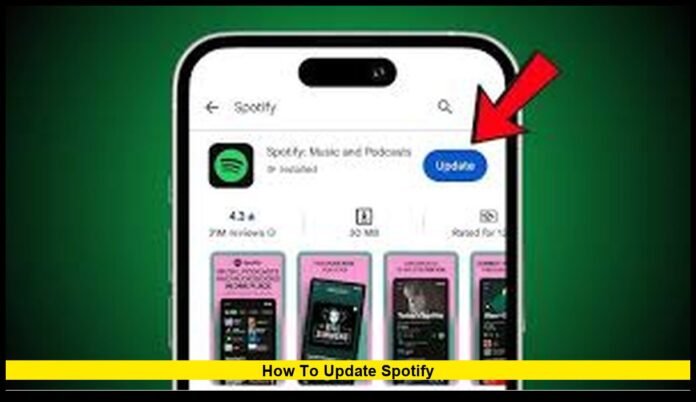

Keeping the Spotify app current ensures that you don’t miss new features, bug fixes, improved security, or seasonal rollouts. If you use Spotify on a phone, computer, tablet, smart TV or other device, you’ll need to know how to update Spotify properly — and this guide walks you through every major platform.
Whether you stream music on the go or at home, updating regularly helps you enjoy the smoothest, most reliable Spotify experience possible.
Why updating matters
Spotify frequently pushes updates to improve performance, tighten security, and add new features.
Older versions may run into bugs, miss out on newly released tools, or fail to support certain devices and operating systems.
Especially if you use Spotify across multiple devices — phone, desktop, tablet, smart TV — keeping all versions updated helps avoid sync problems or functionality gaps.
You can quickly check your current app version via Spotify’s settings and compare it to what’s listed in your app store. If there’s a mismatch, it’s time to update.
Update Spotify on iPhone and iPad (iOS)
- Open the App Store on your iPhone or iPad.
- Tap your profile icon in the top-right corner.
- Scroll to Available Updates or search directly for “Spotify.”
- If an update is available, tap Update. If no update shows, you already have the latest version.
Enable automatic updates
- Go to Settings → App Store → App Updates and turn on automatic updates.
This ensures future releases install overnight without manual effort.
If you encounter a failed update, try restarting your device, confirming you’re on a stable Wi-Fi network, or freeing up some storage space.
Update Spotify on Android Phones and Tablets
- Open the Google Play Store.
- Tap your profile picture at the top-right.
- Go to Manage apps & device (or search “Spotify”).
- If Spotify shows an available update, tap Update.
Turn on Auto-Updates
- In Google Play Store → Settings → Network preferences → Auto-update apps
- Choose whether to allow updates over Wi-Fi only (recommended) or over any network.
If the update fails or doesn’t appear, ensure your device OS is supported, restart your device, clear cache, or check storage space.
Update Spotify on Windows PC (Desktop App)
The update method depends on how you installed Spotify originally:
If you installed via Microsoft Store:
- Open Microsoft Store.
- Go to Library → Get updates.
- If Spotify appears in the list, click Update.
If you installed from Spotify’s website (standalone installer):
- Usually, Spotify auto-updates when reopened.
- If not, close the app fully then reopen it — that often triggers the update.
- If that fails, uninstall and reinstall Spotify. (Note: you may need to redownload any offline playlists.)
Occasionally, Windows updates or Microsoft Store issues prevent updates. In such cases, reinstalling from Spotify’s official site often solves the problem.
Update Spotify on Mac
Mac users typically choose between two installation routes — via the Mac App Store or a standalone Spotify download.
If you got Spotify from the Mac App Store:
- Launch the App Store.
- Click your profile.
- If Spotify appears under updates, click Update.
If you used the direct installer:
- Open Spotify, then go to Spotify → About Spotify.
- If a new version is available, a prompt should appear to download it.
- Download, close Spotify, then restart it to apply the update.
If updating doesn’t work, uninstall the app and reinstall fresh from the official Spotify website. Signing back in restores your account — your playlists and settings remain intact.
Update Spotify on Smart TVs, Consoles, Streaming Devices
Many users access Spotify from smart TVs, streaming sticks, or gaming consoles. The update process reflects how each platform handles apps:
- Open your device’s app store (Roku Channel Store, Samsung Smart Hub, LG Content Store, PlayStation Store, Xbox Store, etc.).
- Search for Spotify.
- If the app shows an Update button, select it.
Many platforms update automatically in the background. But manually checking guarantees you run the most recent version.
What to Do If Updates Fail
Even when you follow all the correct steps, sometimes an update stalls. Here are reliable fixes:
- Restart your device (phone, tablet, PC, or smart TV).
- Switch from cellular data to Wi-Fi (or vice versa) to trigger the update.
- Clear the app cache (on desktop), or free storage space on mobile.
- Log out and log back into Spotify.
- If all else fails, uninstall and reinstall Spotify — especially on desktops; this often resolves persistent bugs or sync problems.
On Windows, issues with the Microsoft Store can block updates. In that case, the standalone installer usually works.
How to Check Your Spotify Version
You can confirm whether you’re on the latest version before updating:
- On mobile (iOS / Android): Open Spotify → go to Settings → About (or similar).
- On desktop (Mac/Windows): Open Spotify → go to Help or look for an About Spotify option. This shows the build number and update status.
If the listed version is older than the one in your app store, update to stay current.
When You Should Update Immediately
You’ll want to update Spotify ASAP if:
- You see a new version available in your store.
- You encounter bugs — crashes, playback issues, missing features.
- You plan to use newly released features, playlist tools, or conduct a platform switch (e.g. new OS, new device).
- You simply want optimal performance and stability.
Delaying updates can lead to glitches, sync problems, or limited access to new tools and content.
Best Practices for Maintaining an Updated Spotify Ecosystem
- Enable automatic updates wherever possible — most devices allow it.
- Use Wi-Fi for updates to save mobile data and ensure fast downloads.
- Periodically check version status on all devices you use Spotify on — phone, tablet, PC, smart TV.
- If you reinstall, keep login credentials handy to avoid interruption.
- Before reinstalling, back up details of any offline playlists you may need to re-download.
These steps help ensure you don’t lose playlists or encounter playback issues — especially if you switch devices or reinstall Spotify.
Final Thoughts
Updating Spotify regularly is a small task that makes a big difference. It keeps your listening smooth, secure and equipped with the latest features. Whether you use your phone, tablet, PC, smart TV or gaming console — following the update steps above ensures your Spotify experience stays seamless and dependable.