
Chromebooks have become a popular choice across the United States for students, professionals, and everyday users thanks to their speed, simplicity, and tight integration with Google services. Whether you are attending online classes, working remotely, troubleshooting an issue, or saving important information, knowing how to take a screenshot on a Chromebook is an essential skill that can save time and improve productivity.
This guide explains every confirmed and current way to take screenshots on a Chromebook, using simple steps that work on modern ChromeOS devices. The instructions below apply to standard Chromebooks, Chromebook tablets, and convertible models, making it easy for any user to capture exactly what they need on their screen.
Why Screenshots Are Important on Chromebooks
Screenshots play a key role in everyday Chromebook use. They allow you to quickly capture and share information without downloading extra software. Many users rely on screenshots to:
- Save online receipts, confirmations, or documents
- Share visual instructions with classmates or coworkers
- Capture error messages for technical support
- Record progress in online learning platforms
- Keep a visual reference of important content
ChromeOS includes built-in screenshot tools that are fast, reliable, and easy to use, even for beginners.
Where Chromebook Screenshots Are Saved
By default, every screenshot you take is automatically saved to the Downloads folder on your Chromebook. You can access them by opening the Files app. Screenshots are saved as image files and are labeled with the date and time they were taken, making them easy to find and organize.
You can move these images to folders, upload them to cloud storage, or edit them using built-in tools.
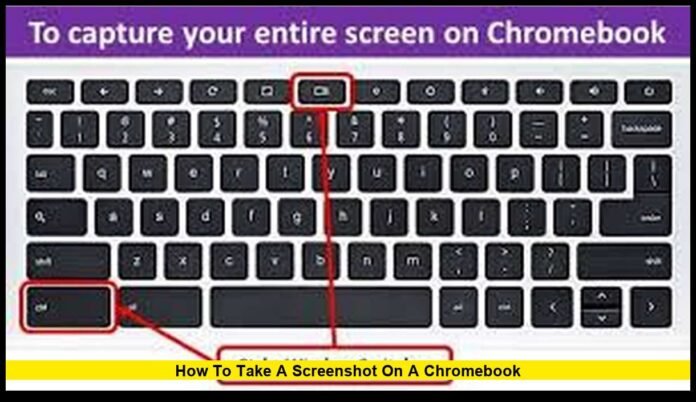
How to Take a Full Screenshot on a Chromebook
A full screenshot captures everything visible on your screen at once.
Steps:
- Press and hold the Ctrl key.
- Press the Show Windows key (the key with a rectangle and two vertical lines).
- Release both keys.
Your screen will briefly flash, confirming the screenshot was taken. The image will be saved instantly to your Downloads folder.
This method is best when you want to capture an entire webpage, desktop, or application view.
How to Take a Partial Screenshot on a Chromebook
A partial screenshot allows you to capture only a specific area of the screen.
Steps:
- Press Ctrl + Shift + Show Windows together.
- Your cursor will change into a crosshair.
- Click and drag to select the area you want to capture.
- Release the mouse or trackpad.
The selected area will be saved as an image in your Downloads folder.
This option is ideal when you only need a section of text, an image, or a small part of an app window.
How to Screenshot a Single Window on a Chromebook
If you want to capture just one open window instead of the entire screen, Chromebook makes that easy.
Steps:
- Press Ctrl + Alt + Show Windows.
- Click on the window you want to capture.
Only the selected window will be saved as a screenshot. This method helps keep images clean and focused, especially when multiple apps are open.
Using the Screen Capture Tool from Quick Settings
Chromebooks also offer an on-screen screenshot tool that does not require keyboard shortcuts.
Steps:
- Click the time in the bottom-right corner of the screen.
- Select Screen Capture.
- Choose one of the options:
- Full screen
- Partial screen
- Window
- Capture the screenshot.
This method is especially helpful for users who prefer visual controls or are new to Chromebook shortcuts.
How to Take a Screenshot on a Chromebook in Tablet Mode
For Chromebook tablets or 2-in-1 devices used in tablet mode, the keyboard may not be accessible.
Steps:
- Press the Power button and Volume Down button at the same time.
- Hold briefly, then release.
This takes a full-screen screenshot and saves it to Downloads.
Taking Screenshots with an External Keyboard
If you are using an external keyboard that does not have the Show Windows key, Chromebook still supports screenshots.
In most cases, the F5 key acts as a replacement for the Show Windows key. You can use the same shortcuts by substituting F5 in place of Show Windows.
Editing and Managing Screenshots
After taking a screenshot, a notification appears in the corner of the screen. Clicking it opens the image with quick editing tools.
You can:
- Crop unwanted areas
- Draw or highlight important sections
- Add text or annotations
For more advanced editing, screenshots can be opened in image-editing apps or uploaded to online tools.
Organizing Screenshots for Better Productivity
If you take screenshots often, organization becomes important. Consider creating folders within the Files app to separate work, school, or personal screenshots. You can also move images directly to cloud storage to keep your Chromebook clutter-free.
Renaming screenshots with descriptive titles can make them easier to locate later.
Screen Recording as an Alternative
Chromebooks also include a built-in screen recording feature. This is useful when a static image is not enough.
Screen recording allows you to:
- Create tutorials
- Explain steps visually
- Capture live demonstrations
The screen recording option is available within the same Screen Capture tool used for screenshots.
Common Screenshot Issues and Solutions
If screenshots are not working properly, try these steps:
- Restart your Chromebook
- Check that the keyboard shortcuts are being pressed correctly
- Make sure your device storage is not full
- Update ChromeOS to the latest available version
Most screenshot problems are resolved quickly with a restart or system update.
Why Learning Screenshot Shortcuts Saves Time
Once you memorize the screenshot shortcuts, capturing your screen becomes almost instant. This small skill adds up to major time savings, especially for students and professionals who rely on visual communication.
Knowing multiple screenshot methods ensures you are prepared in any situation, whether using a keyboard, touchscreen, or tablet mode.
Final Thoughts
Understanding how to take a screenshot on a Chromebook is a simple but powerful skill that improves how you work, learn, and communicate. With built-in tools that require no extra downloads, Chromebooks make screen capturing fast and reliable for all users.
Have a favorite screenshot trick or a question about Chromebook features? Share your thoughts below and stay tuned for more practical tech guides.