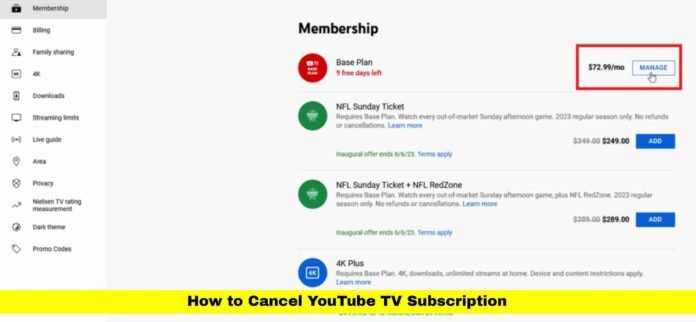

If you’re looking to learn how to cancel YouTube TV subscription, you’re not alone. Thousands of subscribers are reviewing their options this year as YouTube TV continues to adjust its prices and features. As of November 2025, the process to cancel remains simple, but several updates have changed how cancellations, pauses, and reactivations work. Whether you’re stepping away for budget reasons or switching to another platform, this detailed guide explains everything you need to know — from canceling on different devices to what happens afterward.
Why Many Users Are Canceling YouTube TV in 2025
YouTube TV has become a household name since its launch, offering a robust mix of live channels, unlimited DVR storage, and compatibility across devices. However, in 2025, the service has faced a surge in cancellations due to a few major factors.
The first and most common reason is the price increase. Earlier this year, YouTube TV raised its monthly cost from $72.99 to $82.99. This change was attributed to new content deals and sports network fees, but it frustrated subscribers who felt the service was becoming as costly as cable TV.
Another key reason is the ongoing content disputes between YouTube TV and major networks. Several times this year, there were near-blackouts with NBCUniversal and Warner Bros. Discovery over contract renewals. Although YouTube TV eventually reached agreements, these disruptions caused uncertainty and dissatisfaction among loyal users.
Lastly, the expanding competition in the streaming space is making users rethink their subscriptions. Alternatives like Hulu + Live TV, Sling TV, and Fubo are offering customizable and cheaper packages, while free streaming platforms like Pluto TV and Tubi provide decent entertainment options at no cost.
How to Cancel YouTube TV Subscription Using a Web Browser
Canceling your YouTube TV subscription on a desktop or laptop browser is the most direct and reliable method. The process is straightforward and takes only a few minutes.
To start, go to tv.youtube.com and sign in with the Google account linked to your subscription. Once logged in, click on your profile picture in the top-right corner of the screen. From the dropdown menu, choose Settings, then select the Membership tab.
Under the Membership section, locate your active plan and click Manage. You’ll see the option to Cancel Membership. YouTube TV will display a few prompts, possibly offering to pause your account or provide feedback about your reason for leaving. Select Cancel, and then confirm your choice.
Your account will remain active until the end of your current billing cycle. Once the cycle ends, access will be removed automatically, and you won’t be billed again unless you reactivate your membership.
How to Cancel YouTube TV Subscription on Android Devices
Android users can cancel through either the Google Play Store or directly on a web browser.
If you subscribed via Google Play, open the Play Store app on your device. Tap your profile picture, then go to Payments and Subscriptions → Subscriptions. Locate YouTube TV in the list, tap it, and select Cancel Subscription. Follow the confirmation prompts to complete the process.
If you signed up directly through YouTube TV’s website, the process is just as simple. Open your preferred mobile browser, visit tv.youtube.com, and sign in. Tap your profile icon, go to Settings → Membership, and select Cancel Membership. Confirm your choice, and your cancellation will take effect after the billing period ends.
How to Cancel YouTube TV Subscription on iPhone or iPad
For iPhone and iPad users, cancellation depends on how your subscription was created.
If you subscribed through Apple, open the Settings app on your device. Tap your name at the top of the screen, then select Subscriptions. Find YouTube TV and tap Cancel Subscription. Confirm your decision when prompted.
If you subscribed directly via YouTube TV, open Safari or another browser and go to tv.youtube.com. Log in, open Settings, then go to Membership, and select Cancel Membership. Follow the on-screen instructions to finalize the cancellation.
Apple users should always use the App Store’s subscription management system for cancellations, as canceling on the YouTube TV site will not stop Apple’s billing.
How to Pause YouTube TV Instead of Canceling
If you’re not ready to cancel completely, YouTube TV offers an option to pause your membership. This feature is perfect for users who want a temporary break but don’t want to lose their settings or recorded content.
When you pause your account, billing stops immediately, and you can remain on hold for up to six months. During this period, your DVR recordings, preferences, and saved channels are preserved. You can resume your membership at any time before the pause expires.
To pause your subscription, visit Settings → Membership → Manage → Pause. Choose your desired pause duration, and confirm the change. Once your pause period ends, your account will automatically reactivate unless you cancel beforehand.
What Happens After You Cancel YouTube TV Subscription
When you cancel, YouTube TV allows you to continue using the service until your billing period ends. This means you can still watch live channels and recorded shows for the remainder of that time.
After your billing cycle concludes, access to live TV and DVR recordings will stop. However, your recorded content will remain stored for up to 21 days after cancellation. If you reactivate your membership within that period, your DVR library and preferences will be restored.
It’s important to note that YouTube TV does not issue refunds for unused days in a billing cycle. You’ll retain full access until your plan expires but won’t receive a partial credit.
New YouTube TV Updates in 2025 That Affect Cancellations
Several recent updates to YouTube TV have influenced how users view their subscriptions and whether they choose to cancel.
The most significant change is the price increase to $82.99 per month, introduced in January 2025. The company justified this rise by citing expanded channel offerings and improved streaming technology, including 4K support on more networks.
YouTube TV also added several new channels this year, such as HGTV+, MLB Network, and Lifetime Movies, catering to a broader audience. These additions improved the overall value of the service but did not fully justify the higher cost for some subscribers.
Additionally, network disputes have become more common. Midway through 2025, the platform faced tension with major providers like NBCUniversal, leading to public warnings about possible channel losses. Although agreements were reached before any content was removed, the uncertainty has made users cautious.
Lastly, YouTube TV has started offering retention incentives. Some users who attempt to cancel are offered a temporary discount or extended trial period to reconsider their decision. While this might help those on the fence, others see it as a sign that price hikes are pushing users away.
Comparing YouTube TV with Other Streaming Options
Many users compare YouTube TV’s features and cost with other leading live-streaming platforms before deciding to cancel. Below is an updated comparison for November 2025.
| Service | Monthly Price | Channels | DVR Storage | Free Trial | Main Advantage |
|---|---|---|---|---|---|
| YouTube TV | $82.99 | 100+ | Unlimited | 7 days | Strong interface, great DVR |
| Hulu + Live TV | $76.99 | 90+ | Unlimited | None | Disney+ & ESPN+ included |
| Sling TV | $45–$60 | 60–80 | 50 hours | 7 days | Flexible plans |
| Fubo | $79.99 | 150+ | 1000 hours | 7 days | Excellent for sports fans |
| Philo | $30 | 70+ | Unlimited | 7 days | Most affordable option |
While YouTube TV offers excellent reliability and DVR features, some users find these alternatives better suited to their needs or budget.
Common Mistakes to Avoid During Cancellation
Canceling a subscription seems easy, but certain mistakes can lead to unwanted charges or confusion. Always confirm the final cancellation step to ensure your membership truly ends. Users sometimes close the browser before completion, assuming it’s done.
If you subscribed through Apple or Google Play, make sure you cancel using the same platform. Canceling directly on YouTube TV won’t work if billing occurs through another service.
You should also check your billing date before canceling. Cancel at least one day before the next renewal to avoid being charged for another month. Remember, YouTube TV doesn’t provide partial refunds.
Finally, consider removing your payment method from your Google account after canceling if you don’t plan to return. This prevents accidental reactivations during promotions.
Tips for a Smooth Transition After Cancelling
Before you cancel, take a few simple steps to make your transition smoother. Review your DVR library and watch any must-see recordings before access ends. Take note of your favorite channels, as this will help you find replacements on other services.
You can also explore free or cheaper alternatives. Platforms like Pluto TV, Tubi, The Roku Channel, and Freevee offer hundreds of live and on-demand titles at no cost. If sports are your main interest, consider ESPN+, Peacock, or Fubo, which specialize in live sporting events.
For those who plan to return later, the pause feature remains a great way to keep your settings intact while saving money temporarily.
Customer Reactions and Satisfaction Trends
User opinions about YouTube TV in 2025 are mixed. Some appreciate the platform’s clean interface, excellent DVR, and consistent streaming quality. However, the rising subscription costs have caused dissatisfaction among long-term users.
Many subscribers highlight that the pause option is one of YouTube TV’s best features, allowing flexibility without complete cancellation. Still, others point out that the frequent price increases make it difficult to justify keeping the service, especially for households using multiple streaming platforms.
Despite these challenges, YouTube TV maintains strong customer satisfaction ratings for performance, reliability, and content variety.
Final Thoughts
Canceling a subscription can sometimes feel confusing, but how to cancel YouTube TV subscription in 2025 is a straightforward process across all devices. Whether you choose to cancel or pause, understanding the proper steps ensures you don’t face extra charges or lose important data.
With ongoing changes to pricing and competition, many viewers are rethinking how they access live TV. YouTube TV remains an industry leader in quality, but if affordability or limited usage is a concern, exploring other platforms might be the right move.
Have you canceled or paused your YouTube TV subscription recently? Share your thoughts below — your experience could help others decide what’s best for them.