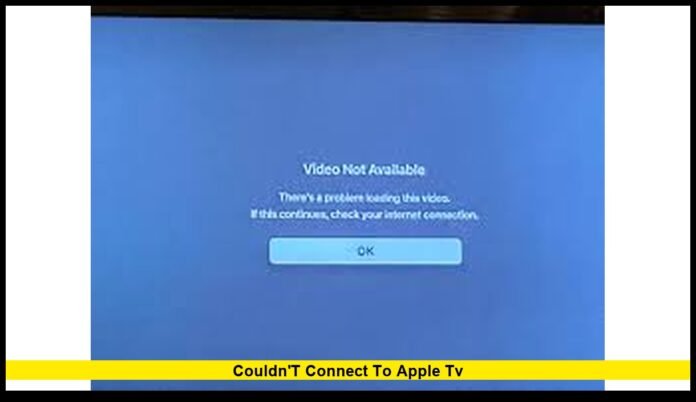

Many streaming viewers across the United States are running into the couldn’t connect to apple tv error, stopping movies, shows, and live content from loading properly. The message often appears without warning and can affect Apple TV boxes, smart TVs, gaming consoles, and mobile devices using the Apple TV app. While the issue can be frustrating, it usually has a clear cause and a reliable solution.
This article explains what the error means, why it happens, and what steps are working right now for U.S. users to restore access quickly.
What happens when Apple TV won’t connect
When Apple TV displays a connection error, it means the app or device cannot complete a secure connection to Apple’s streaming system. This connection is required not only to play content but also to verify your account, sync watch history, and load recommendations.
Users commonly report:
- Blank screens after opening Apple TV
- Endless buffering with no playback
- Titles failing to load after clicking Play
- Sudden errors after an app update or restart
- Apple TV working earlier the same day, then failing
These problems can occur even when internet speeds appear normal and other streaming apps continue to work.
The most common confirmed reasons behind the error
Apple TV connection failures generally fall into a few proven categories.
Temporary service instability
Short interruptions or partial service slowdowns can prevent Apple TV from loading content correctly. These incidents do not always affect every user at once, which is why some households experience issues while others do not.
Home network interruptions
Wi-Fi dropouts, router memory overload, outdated firmware, or DNS conflicts can disrupt Apple TV’s secure handshake with Apple servers.
Account authentication problems
If an Apple ID session expires or becomes corrupted, the app may refuse to connect until the session refreshes.
Software compatibility issues
Outdated tvOS or Apple TV app versions can fail to reconnect properly after background system changes.
Network restrictions
VPNs, firewalls, parental controls, and custom DNS services can block or delay required Apple TV connections.
How to tell if the issue is local or widespread
Before troubleshooting deeply, it helps to identify where the problem is coming from.
- If Apple TV fails on multiple devices at the same time, the issue may be service-related
- If Apple TV works on mobile data but not on home Wi-Fi, the problem is likely network-based
- If only one device fails while others work, the issue is device-specific
This quick assessment saves time and avoids unnecessary resets.
Fast solutions that resolve most Apple TV connection errors
The following steps are based on what consistently works for users experiencing Apple TV connection problems.
Restart Apple TV completely
A full restart clears cached data and stalled background processes.
- Open Settings → System → Restart
- Or unplug Apple TV from power for at least 30 seconds before reconnecting
Many connection errors disappear immediately after this step.
Restart modem and router
Even stable-looking networks can develop temporary routing issues.
- Unplug modem and router
- Wait 30 to 60 seconds
- Plug in modem first and wait until fully connected
- Plug in router and allow Wi-Fi to stabilize
This resets network pathways that Apple TV relies on.
Reconnect Apple TV to Wi-Fi
Saved network profiles can sometimes become corrupted.
- Go to Settings → Network
- Select your Wi-Fi network
- Choose Forget Network
- Reconnect and re-enter the password
This forces a clean network handshake.
Update tvOS or the Apple TV app
Software updates often include performance and connectivity fixes.
- Open Settings → System → Software Updates
- Install any available update
- Turn on automatic updates if disabled
For smart TVs and streaming sticks, update both the device system software and the Apple TV app.
Refresh your Apple account sign-in
Authentication issues are a frequent cause of persistent errors.
- Go to Settings → Users and Accounts
- Sign out of your Apple ID
- Restart the device
- Sign back in
This resets account verification and restores access for many users.
Check date and time settings
Incorrect system time can block secure streaming connections.
- Open Settings → General → Date and Time
- Enable automatic time settings
This step is especially important after power outages or manual clock changes.
Disable VPNs and network filters temporarily
If you use a VPN, firewall, or advanced DNS service:
- Turn it off briefly
- Restart Apple TV
- Test playback again
If Apple TV works after disabling these tools, adjust their settings before re-enabling.
Using Apple TV on smart TVs or streaming devices
Connection errors also affect non-Apple hardware such as Roku, Fire TV, Android TV, and smart TVs.
Helpful steps include:
- Fully powering off the TV or device
- Updating the Apple TV app
- Removing and reinstalling the app
- Checking for system firmware updates
These actions clear background errors unique to third-party platforms.
When Apple TV opens but content won’t play
Some users can access the app but cannot play specific titles.
Try the following:
- Close and reopen the app
- Restart the device
- Test the same title on another Apple device
If only one show or movie fails across devices, the issue may be temporary and content-specific.
Signs the issue is not caused by your setup
You may be dealing with a broader problem if:
- Multiple Apple services show errors
- Switching networks does not help
- Restarting devices does not resolve the issue
- Other users report identical behavior
In these cases, repeated reinstalls and resets rarely help immediately.
Advanced steps if the error persists
If standard fixes fail, consider these options carefully.
Reset network settings
This clears saved Wi-Fi data and forces a full reconnection.
Factory reset Apple TV
This removes all apps, settings, and accounts. Only use this option if you are comfortable setting everything up again.
Factory resets should be treated as a last resort.
What most users can expect
Apple TV connection issues usually resolve once service stability returns or network sessions refresh. In many cases, simply restarting the device after conditions improve restores full access without further action.
If you continue seeing couldn’t connect to apple tv after trying the steps above, waiting briefly and restarting again has proven effective for many U.S. users.
Final thoughts for Apple TV viewers
Connection errors can disrupt streaming plans, but they are rarely permanent. By checking network stability, updating software, and refreshing account sessions, most users regain access quickly. Staying patient and following the correct order of fixes prevents unnecessary resets and data loss.